- An active Teams account
- Operating System: Windows 10/11 or macOS 13.2+
- Minimum 8GB RAM recommended
- Stable internet connection (5+ Mbps upload recommended)
- Evercast Presenter desktop app (required for presenting)
- Active Evercast Presenter account (required for presenting)
Setup guide
10 min

→
Get started with Teams
System requirements
Install & setup
Only the person who is sharing content into a Teams meeting needs the Presenter desktop app. Everyone else can join the meeting as usual to view and give feedback.
1. Install the Evercast Presenter desktop app (Mac or Windows).
2. Install the Presenter for Teams plugin.
- In Microsoft Teams, create a new channel for Presenter.
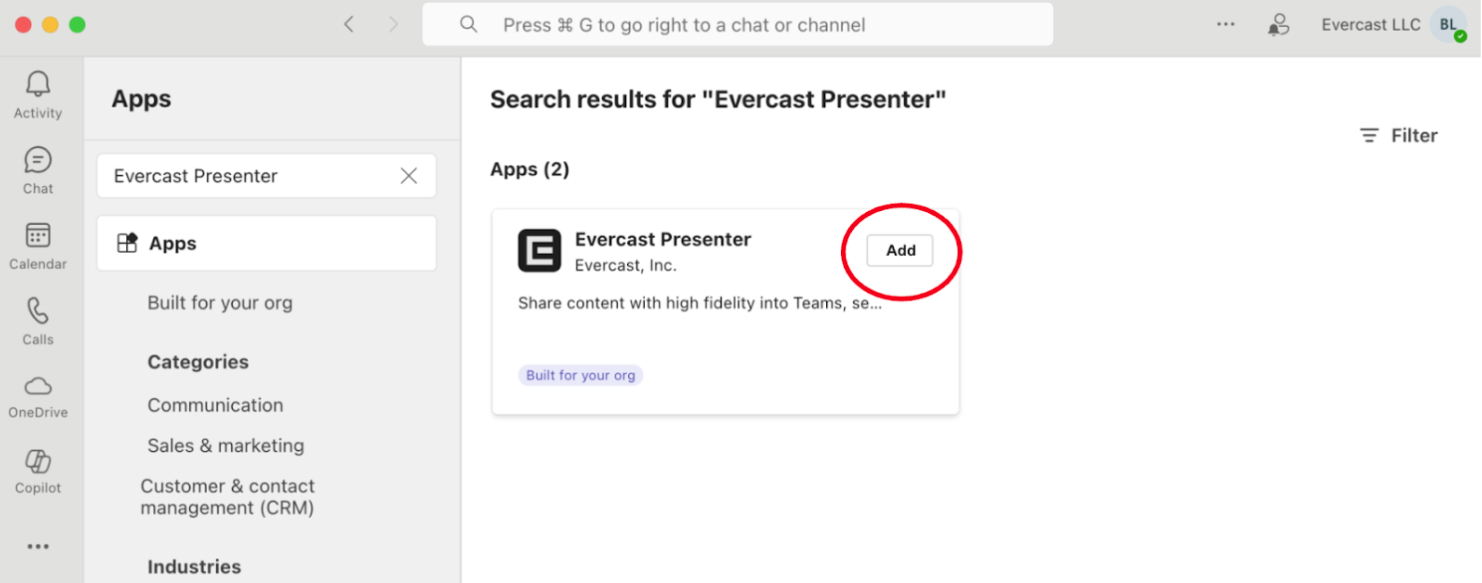
- Click on Apps at the top of your window. The Apps panel will appear. At the bottom of the panel, click the Manage Apps button.
- Search for "Evercast Presenter" and install it by clicking Add.
Present content in Teams
1. Launch Microsoft Teams, schedule a meeting, and join it.
Known issue: Presenter currently works with Scheduled Meetings, not with Meet now.
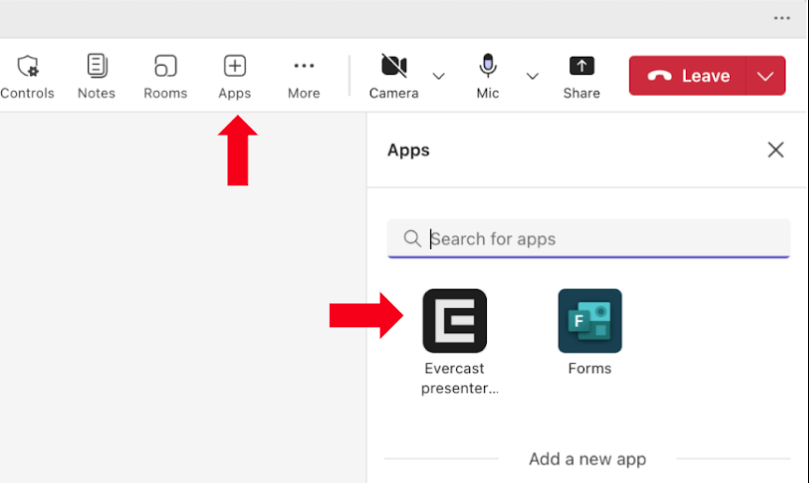
2. In your Teams meeting, click Apps on the top bar and select Evercast Presenter.
3. Launch the Evercast Presenter desktop app and sign in.
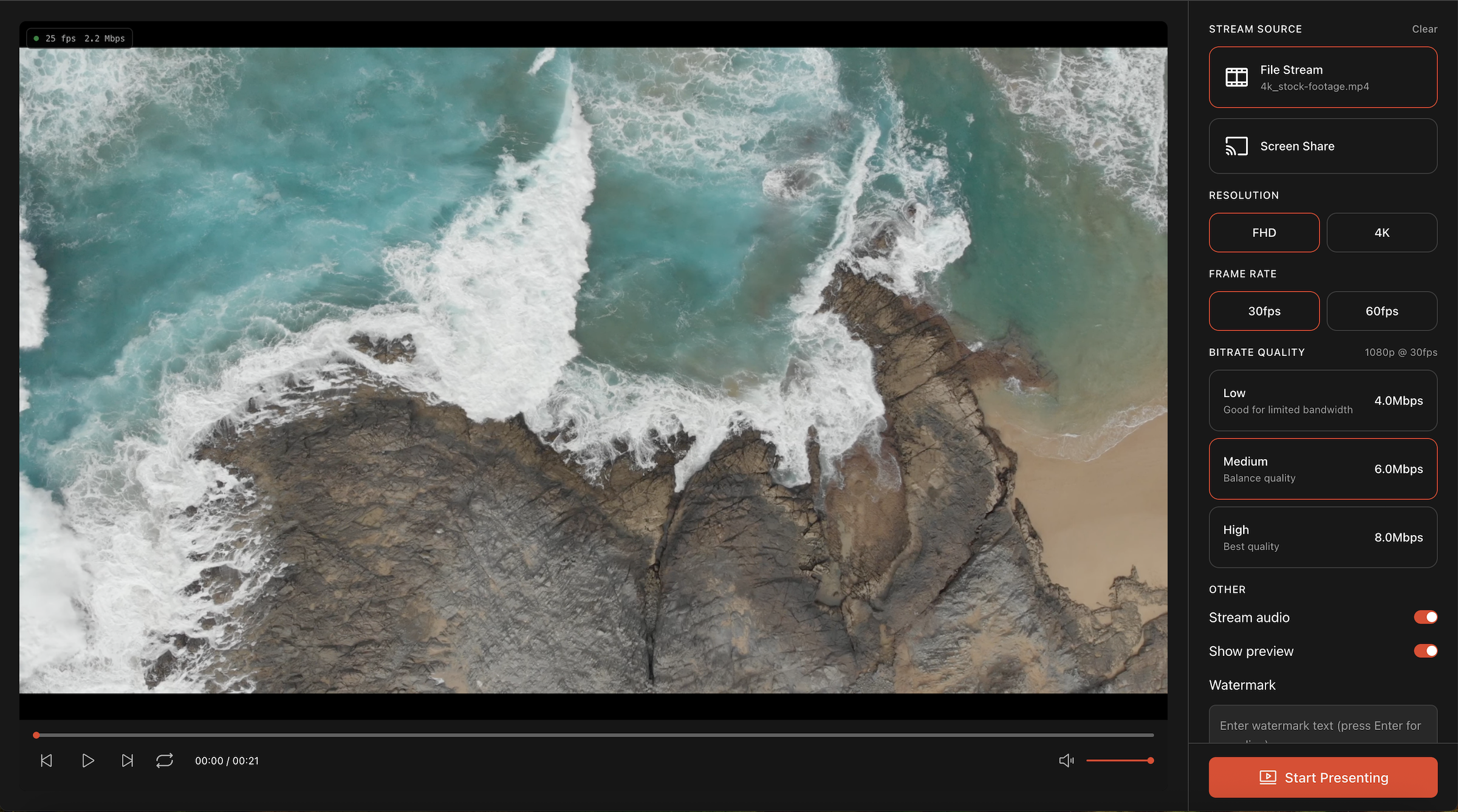
4. Choose what you want to present.
- Select a video file (.mp4 or .mov) or an application window.
- A preview of your content will show on the left.
- Presenter will auto-detect the best settings for your source and bandwidth. You can also customize your settings.
5. Click Start presenting and all participants will be able to view your content.
macOS users
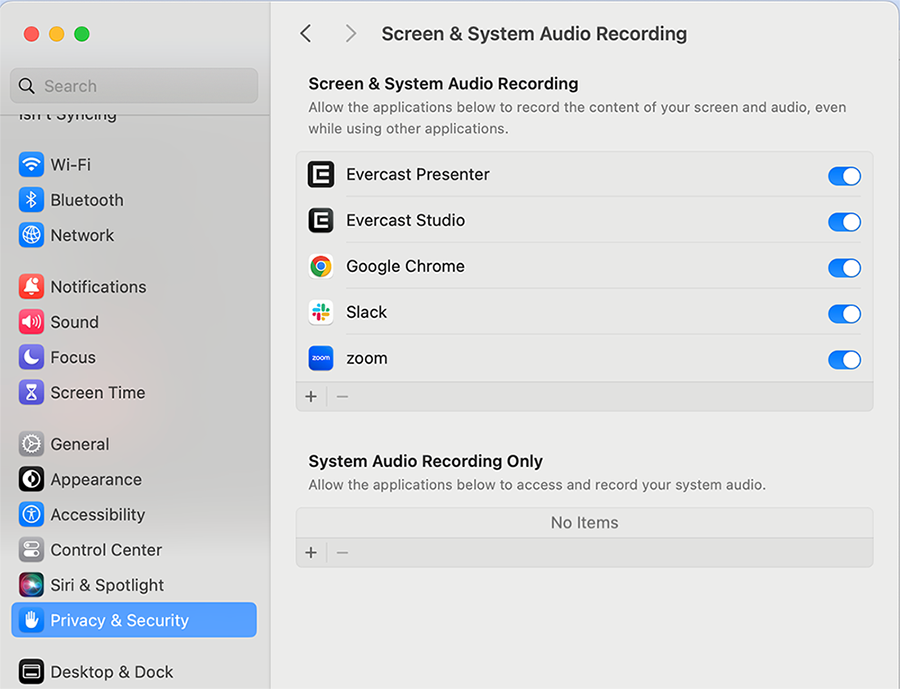
If a window pops up that says Enable screen recording, or if you receive a Permission denied message, you need to grant permission to Evercast Presenter.
- Click the Open System Preferences button in Presenter, or go to your System Settings in the Apple menu.
- In System Settings, navigate to Privacy and Security.
- In Screen & System Audio Recording, locate Evercast Presenter and make sure the toggle is on (blue).
- Restart Evercast Presenter.
View content in Teams
1. Make sure your app is updated to the latest version. You can use desktop or mobile.
2. Start or join a meeting where someone will be sharing with Presenter.
3. If starting a meeting, select Evercast Presenter from the Apps section.
4. Sign in to your Presenter account using Google or Microsoft, or continue as a guest.
- Note: Continuing as a guest may limit the features you can use.
5. You can now view content shared into the meeting, with higher quality than standard screen share.