












Your work deserves better than screenshare
Standard conferencing tools aren’t made for high-quality media sharing—but you don’t have to settle for skipped frames, lag, and compression. Just connect the Presenter plugin for crystal-clear quality every time.










.png)




4K
60
<
100ms
Three easy steps for pristine presentations
Share content with perfect playback in just a few clicks. Your clients and collaborators just join Zoom or Teams as usual.


Connect to Zoom or Teams
Enable the Presenter plugin and connect to your meeting.
Select a video or application window
Share any video file or select from one of our 100+ app integrations.
Adjust settings and start presenting
Select resolution, frame rate, and bit rate, and add watermarking for extra security if needed.
Focus on the content,
not the playback quality
Select any video file—or choose from 100+ supported apps and cloud integrations. Evercast’s proven streaming technology brings powerful performance with built-in adaptive bandwidth and enterprise-grade security.















Showcase your best work—without interrupting your flow
Whether it’s a critical creative review, official keynote, client pitch, or any other moment when quality counts, Presenter lets you share your work in its best light.

Share key visuals in team syncs or company-wide presentations.
.png)
Present demos, sales assets, or work samples to important prospects.

Present sensitive materials to government agencies and partners.
.png)
Review key ideas, cuts, or designs for seamless collaboration.


Review critical concepts, prototypes, or flows with your team.
.png)
Share confidential medical imaging with patients or other providers.

Show training videos to employees for uninterrupted learning.

Securely look over sensitive materials with clients or internal teams.






For teams of all sizes
Bring seamless, high-quality presentations to Zoom, Microsoft Teams, or Google Meet. Share decks, videos, and live demos at scale without lag or disruption.
For individuals and small teams looking to present with quality, clarity, and consistency.
$39
$49




For organizations looking to optimize presentations at scale with custom features and services.
Custom

High-performance collaboration at global scale
Evercast is built to deliver high-performance collaboration at global scale, keeping your teams productive and your content protected—regardless of size or complexity.
Discovery
Phase
We begin by understanding your brand’s vision, audience, and goals — laying the foundation for a clear creative direction and meaningful strategy.
Design
Creation
Our team transforms insights into visual concepts, crafting bold and cohesive designs that express your identity across every digital touchpoint.
Brand
Delivery
We finalize and launch your brand assets with precision, ensuring every detail communicates consistency, quality, and lasting emotional impact.
Supercharge your presentations
Share content with unparalleled quality—all within the conferencing tools you already use.

.svg)

Connect to Zoom, Teams, or Meet
Enable the Presenter plugin and connect to your meeting.

Select a video or application window
Share any video file or select from one of our 100+ supported apps.
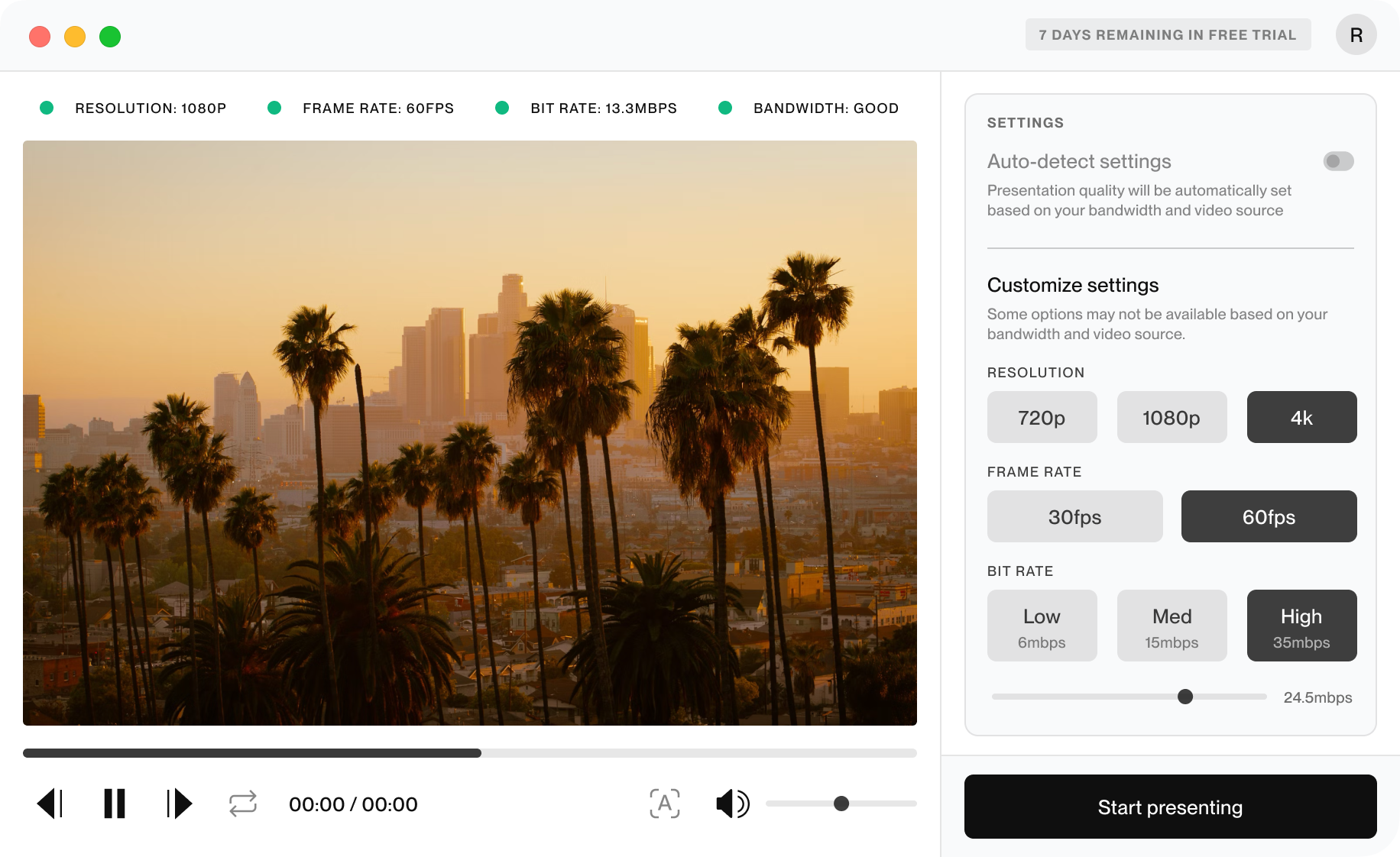
Adjust settings and start presenting
Select resolution, frame rate, and bit rate, plus add watermarking for extra security if needed.
Have questions?
How do I get started with Presenter?
Presenter is a plugin that lets you securely share high quality media with no skipping, lag, or compression artifacts. To use it, only the person presenting needs to install the app—your team just joins the meeting as usual. Once you’ve got the Presenter app, enable the plugin in and connect to your meeting. Select a video file or window to share (or choose from over 100 app integrations), adjust settings if needed, then present!
Get started with Meet ↗
Get started with Zoom ↗
Get started with Teams ↗
What types of media are supported?
Presenter lets you share any video file (.mp4/.mov) or app window in up to 4K resolution with no skipping, lag, or compression artifacts. You can also choose from one of our 100+ integrations to share content directly from your go-to apps.
How to present content in Meet ↗
How to present content in Zoom ↗
How to present content in Teams ↗
How does Presenter handle bandwidth issues?
By default, Presenter automatically detects source quality and network conditions to optimize playback for the best possible experience. Performance details are available for both you and any participant in the room, making it easy to see whether everyone is receiving consistent quality and performance. If you choose to customize playback settings instead of using auto-detection, the help tool will recommend specific adjustments if performance drops due to bandwidth limitations.
Can I present multiple videos at once?
One person can’t present multiple videos at the same time, but if multiple participants have the plugin installed, they can each share their own video simultaneously—allowing multiple videos to play in the same meeting.
If your workflow requires one person to share media from multiple sources at once, Evercast Studio might be a better fit. Evercast Studio is built for deeper creative sessions and technical workflows, letting you securely stream from any creative software, media file, or even live cameras with 4K resolution, 7.1 surround sound, and 10-bit 4:4:4 color.
Discover Evercast Studio ↗
How does the quality compare to screenshare?
Presenter raises the bar when it comes to quality and performance of shared video and other high-quality visuals. Here are some key differences:
No skipped frames, lag, or compression, so videos play clearly and smoothly.
Higher image quality than typical screen sharing, especially for motion, gradients, and fine detail—plus the ability to share video in up to 4K resolution and 60 frames per second.
Low latency (<100ms on average globally), so you know you’re seeing the same thing at the same time.
Cleaner and in-sync audio because the content isn’t repeatedly re-encoded through the conferencing platform.
To participants, it typically looks and feels more like a professional screening than a choppy screenshare.
Can I present via DeckLink or other capture devices?
No, Presenter lets you share any video file (.mp4/.mov) or app window—or you can also choose from one of our 100+ app integrations. However, if you’re looking to stream from a capture device, our flagship solution Evercast Studio may be a better choice.
Evercast Studio is built for deeper creative sessions and technical workflows, letting you securely stream from any creative software, media file, or even live cameras with 4K resolution, 7.1 surround sound, and 10-bit 4:4:4 color.
Discover Evercast Studio ↗
What security features does Presenter have?
Presenter offers stronger protection than standard screensharing, where the conferencing platform fully owns the media pipeline from your desktop to every participant. When you use Presenter, the meeting functionality (i.e. participants, chat, moderation) is provided by Zoom, Microsoft Teams, or Google Meet—while Presenter handles the actual media stream.
Media shared through Presenter is sent via encrypted channels, not through the conferencing app’s built-in screenshare pipeline. When recording a meeting, the conferencing platform isn’t able to access nor capture any content shared through Presenter. For extra protection, you also have the option to add visual watermarking.

Looking for full-scale review and collaboration in one?
Our flagship solution, Evercast Studio powers creative and technical workflows from ideation to delivery. Video conference as you securely stream from NLEs, DAWs, or even live cameras with up to 4K resolution, 7.1 surround sound, and 10-bit color—all in one app.